Welcome to BooklyFit
This guide helps you understand BooklyFit step by step – whether you're setting up your own gym or simply looking to book classes.
BooklyFit is an all-in-one platform for fitness studios, CrossFit boxes, and boutique gyms. It brings together class booking, member management, payment processing, and community features into a single, easy-to-use interface.
Manage Classes
Build your weekly timetable and let members book online with a single tap.
Collect Payments
Automatically charge subscriptions and single bookings via Stripe.
Build Community
Leaderboards, personal records, meetups, surveys, and group chats for your members.
Getting Started
For Studio Owners – Setting up your gym:
- Register: Go to the sign-up page and choose "Create a New Studio". Enter your studio name, email, and a password.
- Verify your email: You'll receive a confirmation email. Click the link to activate your account (valid for 24 hours).
- Set up your studio: After logging in, upload your logo, enter your address, and start building your class schedule.
- Enable payments: Connect your bank account via Stripe under the subscription settings to start accepting memberships and drop-in payments.
For Members – Joining a studio:
- Find your studio: Search for your gym in the directory or use the direct invitation link.
- Sign up: Create your account with your name, email, and password.
- Get approved: Depending on the studio's settings, you'll either be approved instantly or wait for a coach to verify you.
- Choose a membership: Subscribe to a plan or buy a punch card to unlock full class booking access.
Who Can Do What?
Every person in BooklyFit has a specific role that determines what they can see and do. Here's an overview:
Studio Owner
Has full control over everything: settings, member management, classes, payments, analytics, and email templates. Can promote others to Coach or Owner.
Coach / Trainer
Can create and edit classes, record attendance (Check-in / No-Show), program training cycles, and cancel classes. Can see all booked participants and book classes themselves.
Member
Has an active membership (subscription or punch card). Can book classes, join meetups, vote in surveys, log personal records, and appear on the leaderboard. The number of bookable classes per week may be limited by the plan tier.
Trial User
Every new member starts as a trial user. The number of trial bookings can be limited by the studio owner. Once a membership is purchased, the status automatically changes to "Member".
Guest (Drop-in)
Visitors who pay for individual classes without an account or membership. Cannot use the waitlist – can only book available spots.
Booking & Cancelling Classes
The weekly calendar is the heart of BooklyFit. Here you can see all available classes at a glance.
How to book a class
- Open the class calendar on the home page.
- Tap on the class you want to see details (coach, description, available spots).
- Click "Book" – done! You'll receive a confirmation.
How to cancel a booking
- Go to your booked class in the calendar or your profile.
- Click "Cancel".
- If the cancellation is before the deadline (set by the studio, e.g. 4 hours before), your booking is removed for free.
- After the deadline, cancellations are no longer possible.
Waitlist
If a class is full, you don't have to miss out. Here's how the waitlist works:
- Automatically added: When all spots are taken, clicking "Book" automatically places you on the waitlist.
- First come, first served: If someone cancels, the person who has been waiting the longest automatically gets the spot.
- Instant notification: As soon as you're moved off the waitlist, you'll receive a push notification and email – no action needed on your part.
Open Gym
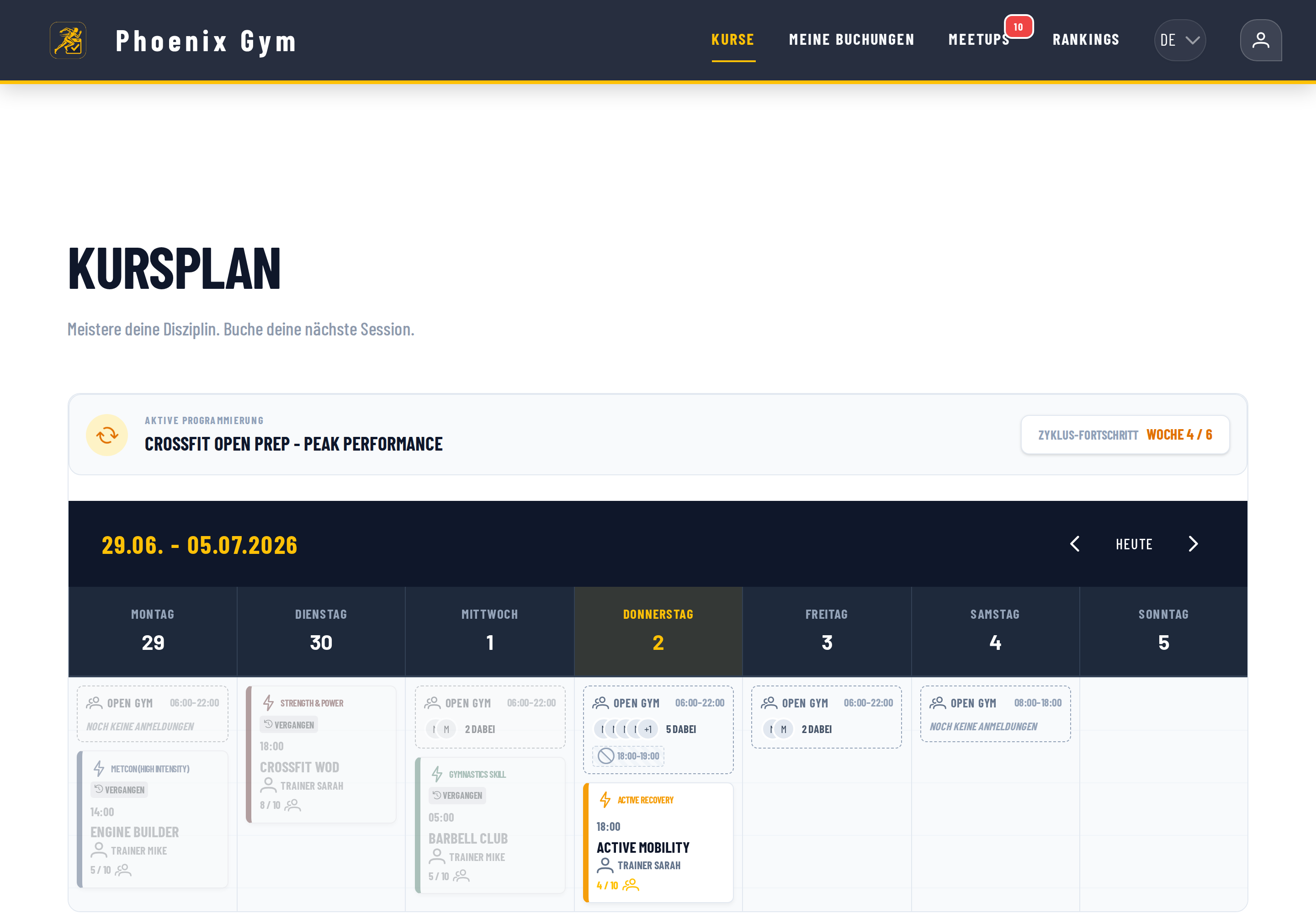
Open Gym is self-organized training time outside of coached classes. The studio owner enables Open Gym and defines opening hours – members then check in on their own. The banner appears at the top of the calendar on every open day, above the regular classes.
Within opening hours only
The banner shows the day's hours (e.g. 06:00–22:00). Check-ins outside those hours or on closed days are rejected.
Check in & social check-ins
Tap the banner, then "I'm going". Pick your arrival time and duration. You see other attendees' avatars and times – so you can train together.
Blackouts & capacity
Coaches block times (one-off or recurring) – e.g. during classes, events, or maintenance – and blocked times appear on the banner. An optional maximum number of simultaneous people can be set.
Memberships & Payments
Connect Stripe: To accept payments, you first need to connect your bank account via Stripe. Go to the subscription settings and click "Connect Stripe". You'll be guided through the setup process.
Create membership plans: Set up different tiers (e.g. Basic, Premium, Unlimited) with a monthly price, description, and optional weekly booking limit. Everything syncs automatically with Stripe.
Offer punch cards: As an alternative to subscriptions, you can offer punch cards (e.g. 10-class pass). Members purchase credits and use one per booking.
Yearly admin fee: Optionally enable a yearly fee that is charged automatically once per year (e.g. for insurance or admin costs).
Subscribe: Go to your profile and choose a membership. Payment is processed securely via Stripe. After a successful payment, you'll receive an invoice by email.
Switch plans: You can switch to a different plan at any time (upgrade or downgrade). The difference is settled on your next billing date. Note: A switch is blocked if you already have more bookings that week than the new plan allows.
Cancel: Monthly subscriptions run until the end of the paid period. During that time, you can undo the cancellation with a single click. Yearly plans are cancelled immediately.
View invoices: All your past invoices can be found in your profile under the "Invoices" tab.
Guest Drop-ins
Traveling athletes or visitors can book individual classes without signing up or committing to a membership:
- Choose a class: The guest finds the studio through the public directory and selects a class with available spots – or simply scans the class QR code.
- Reserve a spot: Clicking "Book Drop-in" holds the spot for 15 minutes so the guest can complete payment.
- Pay online: The guest is redirected to a secure Stripe payment page and pays by credit card (including Apple Pay / Google Pay).
- Get confirmation: After successful payment, the guest receives an email with the booking confirmation and an invoice PDF.
Book by QR code
Studio owners generate a QR code for any recurring class (in the class dialog under "Drop-in QR") and print or display it. Guests scan it, land directly on the next session of that class, and book in seconds. Their name and email are saved on the device – next time it's just one tap to pay.Workouts & Exercise Library
BooklyFit includes a comprehensive exercise library with video tutorials so you can perform every movement correctly.
Video tutorials:
Each exercise comes with short videos showing proper form. You can switch between viewing angles (e.g. front, side) and genders.
Step-by-step instructions:
Alongside videos, you get detailed text instructions with all important cues for proper execution.
Workout plans on classes:
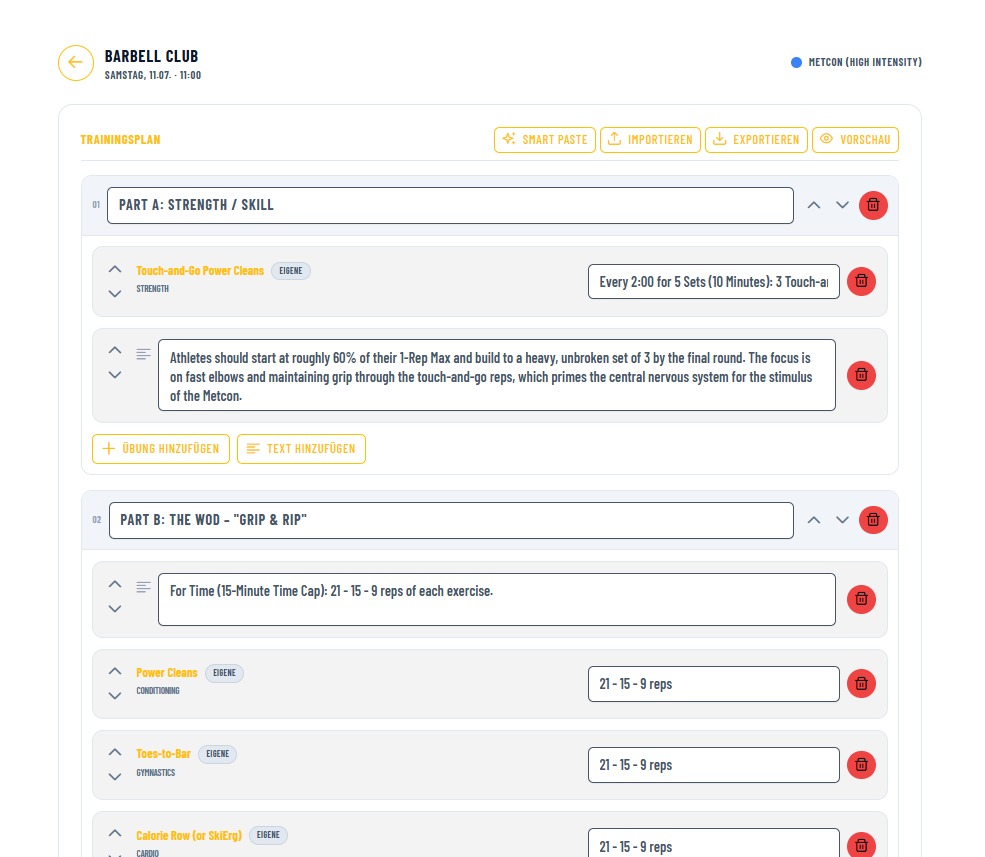
Coaches can attach workout plans directly to classes. This lets you see exactly what exercises are planned before you book – including the video tutorials.
Smart Paste (AI-assisted) · Premium:
Coaches paste a workout plan as free text, CSV, or JSON, and the AI automatically structures it into sections, exercises, and notes — ready to review and tweak before saving. Included with any paid subscription.
Voice input · Premium:
Instead of typing, just talk: tap the mic and dictate your plan naturally — in English or German, matching the app's language. The text streams in live as you speak and is then structured by the AI the same way.
Meetups & Community Chat
Build a stronger community at your studio with activities outside of training:
- Create events: Any member can organize informal gatherings – e.g. a weekend run, barbecue, or hiking trip.
- RSVP: Participants can respond with "Going", "Maybe", or "Not Going" so the organizer knows who's coming.
- Group chat: Each meetup has its own chat thread where participants can coordinate. Unread messages are shown with a badge counter.
Right in the Community's Chats tab, members can also:
- Chat 1:1: Any member can message any other member, trainer, or admin directly – for example by tapping a name in a meetup or on the leaderboard.
- Receive announcements: Trainers and admins can broadcast announcements to every member. These appear pinned at the top of the chat list and can't be replied to.
- Control profile privacy: Each member decides in their profile settings whether others can see their extended profile details. Name, photo, and role stay visible regardless, so they remain identifiable and reachable.
Surveys
Collect quick feedback from your community instead of digging through chat groups:
- Create a survey: Any member can set up a poll with one or more questions – single-choice or multiple-choice – and a closing date.
- One-click voting: Members pick their answer and can change it anytime until the survey closes.
- Hide results: The creator can choose to hide results until a member has voted (blind poll), or keep them visible live from the start.
- Push notification: The community is automatically notified by push notification when a survey is published.
Leaderboard & Personal Records
Monthly Leaderboard
Shows which members attended the most classes this month. Ties are broken by the longest streak of consecutive training weeks.
Personal Records (PBs)
Log your best performances – e.g. max deadlift weight, your best "Fran" time, or other benchmark workouts. If you hit a top-3 score, all members at your studio get a push notification!
Push Notifications
Never miss an important update. BooklyFit sends push notifications directly to your phone or desktop browser:
- Waitlist update: You're notified instantly when a spot opens up for you.
- Class cancelled: If a class is cancelled, you'll know right away.
- New chat messages: When someone writes in a meetup chat you've joined.
- New records: When a member at your studio hits a top-3 personal best.
- New member: Coaches and owners are notified when someone signs up.
For Coaches & Trainers
As a coach, you have powerful tools to manage your class schedule:
Create & edit classes:
Create new classes with a title, description, time, duration, max capacity, and assigned coach. Classes can be one-time or recurring (daily, weekly).
Record attendance (Check-in):
After the class, mark each participant as "Attended" (Check-in) or "No-Show". This data feeds into the leaderboard and attendance statistics.
Program training cycles:
Plan multi-week training programs (e.g. 8-week strength block). Assign a focus to each day of the week (e.g. Monday = Squats, Wednesday = Gymnastics) so your members know what to expect.
Control trial access:
For each class, you can decide whether trial members are allowed and set the maximum number of trial spots to prioritize paying members.
Class Feedback
After each class, members who attended can optionally leave quick feedback about the session — voluntary, and the coach never finds out who said what.
How members give feedback
Anyone marked attended for a class (not from the waitlist) sees a "How was it?" prompt on the home page for recently-attended classes. They can pick a mood (😕/😐/😄), select improvement tags (e.g. "Shorter explanations", "More individual coaching", "Better time management", or "All good"), and add a comment — at least one of the three is required to submit. The window closes 72 hours after the class ends.
What the coach sees
Inside the familiar roster dialog, a "Feedback" section appears once the class has finished, showing aggregated sentiment, tags, and comments — visible only to the coach who taught that class. No other trainer, and not even an admin, can see another coach's class feedback.
Statistics & Analytics
Make data-driven decisions with built-in business statistics (visible to owners and coaches):
- Fill rate: Shows what percentage of offered spots in your classes were actually booked.
- Popular times: Discover which hours see the most bookings – perfect for optimizing your schedule.
- Weekday trends: Which days are most popular? Find out whether your members prefer Mondays or Thursdays.
- Most popular classes: See which class formats (e.g. CrossFit WOD, Yoga, Weightlifting) attract the most bookings.
- Coach statistics: Overview of coached sessions per trainer – useful for scheduling and compensation.
Managing Members
As a studio owner or coach, you can manage all members from one place:
- Approve new members: When the approval requirement is turned on (see Settings), new members must be approved by a coach or owner before they can book classes.
- Change roles: Promote members to coaches or owners when they take on more responsibility.
- Create members manually: As an owner, you can directly create new users. They receive a temporary password and must change it on first login.
- Stay on top of things: See at a glance each member's subscription status, remaining punch card credits, and last activity.
All Settings Explained
Settings are divided into seven areas. Here we explain every setting in detail – what it does and what happens when you change it.
1 Studio Identity
Studio name: Your studio's name as shown everywhere in the app and the public directory.
Logo: Your studio logo is displayed on the schedule, in the directory, and in emails.
Address (street, zip, city): Displayed in the public directory so members can find your studio.
Category: Classify your studio (e.g. "CrossFit", "Yoga", "Fitness") for directory search.
Description: A free text shown in the directory to describe your studio.
Make studio public: When enabled, your studio appears in the public directory and is visible to everyone. When disabled, your studio is only accessible via direct link.
2 Email Templates
Welcome email: Sent to every new member who registers at your studio. You can customize the text using Markdown and add file attachments (e.g. your terms of service or a liability waiver).
Membership welcome email: Sent when a member purchases a membership for the first time. Great for sending special instructions or contract documents.
3 Email Server (SMTP)
Use your own email server: By default, emails are sent through BooklyFit's server. If you want emails to come directly from your own domain (e.g. [email protected]), you can set up your own mail server here.
Fields to configure: Host (e.g. smtp.my-provider.com), Port (e.g. 587), Username, Password, and Encryption (TLS/SSL).
⚠️ This is optional. If you don't have your own mail server, everything works automatically through BooklyFit.
4 Legal Information
Legal representative: Name of the person legally responsible for the studio.
Business address: Street, house number, zip code, and city for your legal notice.
Contact: Email address and phone number for the legal notice.
Tax ID / VAT ID: Displayed on invoices and in the legal notice.
Legal notice text: Your full legal notice (imprint) in Markdown format.
Terms & conditions: Your terms of service shown to members during registration.
Privacy policy: PDF upload of your privacy policy.
5 Booking & System Rules
These settings directly affect how your members book classes and how your studio operates:
Booking Window
What it does: Controls how far in advance members can book classes.
Options: "Off" (unlimited), "Current Week" (this week only), "2 Weeks", or "1 Month".
Example: With "Current Week", members only see classes until Sunday of this week and cannot book further ahead.
Cancellation Deadline
What it does: When enabled, members can only cancel up to a certain number of hours before the class starts.
Hours before class: The deadline in hours (e.g. 4 hours). After this deadline, cancellation is no longer possible.
When disabled: Members can cancel anytime up until the class starts.
Automatic Class Cancellation
What it does: When enabled, classes are automatically cancelled if too few people have signed up.
Minimum participants: The minimum number of bookings a class must have (e.g. 3 people).
Check X hours before: When the system checks (e.g. 4 hours before the class). If the minimum isn't met, the class is cancelled and all participants are notified.
When disabled: Classes always go ahead, regardless of how many people have booked.
Require Approval for New Members
What it does: When enabled, new signups can register but cannot book classes until a coach or owner manually approves their account.
When disabled: New members can book immediately after registering and confirming their email.
Trial Booking Limit
What it does: Limits the total number of classes a trial user can book before they need to purchase a membership.
Example: With a limit of 3, a trial user can attend 3 classes. After that, they'll be prompted to get a membership. Set to 0 to disable this limit.
Max Trial Users Per Class
What it does: Limits how many trial members can sign up for a single class. This ensures paying members get priority.
Example: With a limit of 2, a maximum of 2 trial users can register for the same class. Additional trial users must choose a different time slot.
Show Participant Names
What it does: When enabled, members can see who else has signed up for a class.
When disabled: Members only see the number of booked spots, not names.
Show Waitlist
What it does: When enabled, members can see how many people are on the waitlist for a class.
When disabled: The waitlist still works behind the scenes, but is not visible to members.
Show Workout Plans
What it does: When enabled, members can view the workout plans attached to classes by coaches.
When disabled: Workout plans are only visible to coaches and not shown to members.
6 Open Gym
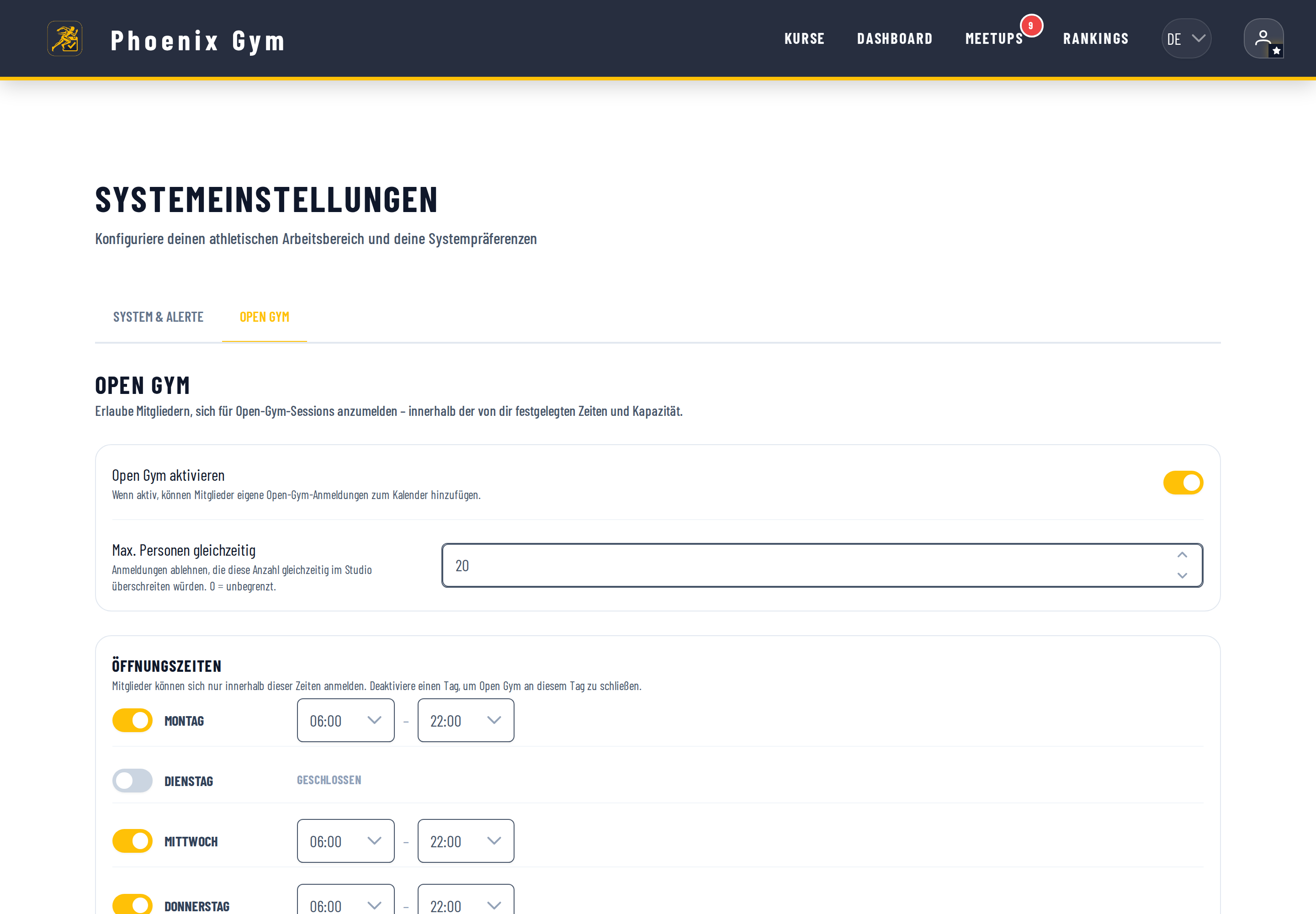
Enable Open Gym: Turns on the self check-in feature. When active, an Open Gym banner appears on the calendar for every open day.
Max people at the same time: Rejects check-ins that would exceed this many people in the gym simultaneously. 0 = unlimited.
Per-weekday opening hours: Set an open and close time for each day – or turn a day off to close Open Gym that day.
Blackout windows: Block specific times (one-off or recurring), e.g. during classes, events, or maintenance.
Participation terms / waiver: Optional text as Markdown or a PDF upload that members see before checking in.
7 Privacy
Public profile (for members): Each member can choose whether their profile is "Public" or "Private" in their profile settings.
Public: You appear on the leaderboard, in participant lists, and in personal record feeds.
Private: Your name doesn't appear anywhere publicly – you're hidden from rankings and participant lists. You can still book and attend classes normally.
Studio Directory
The public studio directory is the go-to place for anyone looking for a new studio:
- Find studios: Search by city, name, or category (e.g. CrossFit, Yoga, Fitness).
- View schedules: Click on a studio to see their current public class schedule and check available spots.
- Join: Register directly at a studio as a new member.
- Book a drop-in: As a guest, you can book and pay for a single class right from the studio page.
- Register your own studio: As an owner, you can create your gym through the directory.